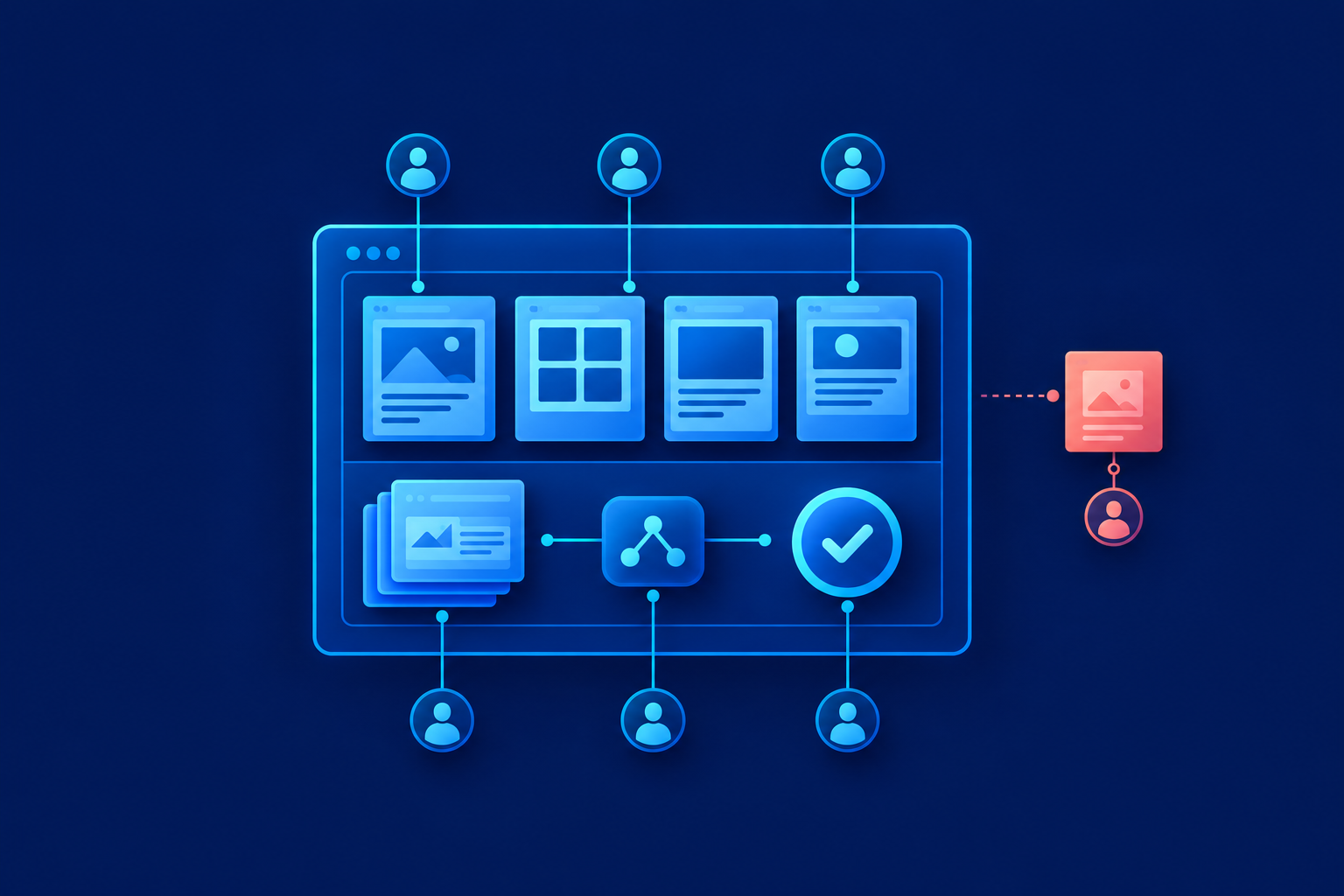

A client portal for small business becomes worth testing when recurring file requests, version-specific approvals or status enquiries need a lasting, permission-controlled record. It is a private online workspace where clients submit, review or check work. Keep email if a clear checklist and shared folder solve the problem. A crowded inbox alone does not justify another system.
Start with three client needs, not inbox size
Ask what is missing, what needs approval and what happens next. Can a client find those answers without contacting your team? Can staff identify the current file and authorised decision-maker? Email can remain the conversation and notification channel. A portal earns its place only when it makes those answers easier to maintain and trust.
Separate process failures from software gaps. Reminders cannot give a contact authority to approve. A status page cannot correct an unrealistic delivery promise. First name the coordinator, approver and update owner. If responsibilities remain unclear, software will display the confusion rather than resolve it.
Keep email, improve sharing or test a portal?
| Recurring problem | Simpler fix | Reason to pilot a portal |
|---|---|---|
| Missing client files | One checklist, upload destination and coordinator | Clients need to see missing, received and accepted items |
| Delayed approvals | Name an authorised approver, version and deadline | Decisions must remain attached to exact revisions |
| Conflicting attachments | One controlled folder and revision naming rule | Files, decisions and status need a connected history |
| Repeated status questions | Scheduled updates with blockers and next actions | Clients need self-service visibility across recurring jobs |
| Different stakeholder access | Review named-user folder permissions | Access must vary by client, project or role |
An upload-only link may be enough when collection is the only difficulty. Microsoft documents file requests that let recipients upload without browsing other files or seeing other uploaders. However, administrators must allow Anyone links and the relevant sharing settings.[1] Do not weaken your organisation’s sharing policy just to enable convenient uploads. This feature does not replace a checklist or approval record.

Define the minimum around one repeatable task
Choose one workflow, such as collecting onboarding documents or approving artwork. Assign a staff owner who checks the record and updates it whenever the stage or blocker changes. Agree an update frequency with clients. Without that responsibility, even a well-designed client project status portal becomes another source of stale information.
- Named users and client separation: each person sees only permitted organisations and projects.
- Requested-item checklist: show the owner, deadline and missing, received or accepted state.
- Controlled revisions: distinguish file versions and provide upload progress, clear failures and retry.
- Exact-version approvals: record the approver, revision, decision, time and comments; changed work needs fresh approval.
- Useful status: show the stage, blocker, next action, responsible person and last-updated time.
- Actionable email: explain what needs attention and link to the current record, rather than circulate competing attachments.
- History and closure: retain important changes, export files and decisions, and define archiving, access removal and deletion.
Defer chat, AI assistants, native apps and elaborate dashboards unless the workflow requires them. Every extra channel creates another place to monitor. On mobile, prioritise the next required action over a broad dashboard. Test with real client devices and typical connection conditions, including an interrupted upload.
Test access boundaries before calling it secure
Treat access controls as release acceptance criteria. Test that one client cannot open another client’s files, including through a copied link. Check staff permissions, access removal, account recovery and session expiry. Agree how uploads are validated, suspicious files are handled and backups are restored. Ask for evidence of these checks, not simply a security badge.
Private storage alone does not establish who may access a file. Cloudflare documents R2 presigned URLs as bearer tokens: possession grants the specified access, and the link remains reusable until expiry.[2] Your portal must check the person’s permission before providing access. Link expiry and forwarding risks need deliberate rules; neither a private bucket nor a login screen guarantees a secure implementation.
Hypothetical example: one artwork approval
Imagine a small packaging-design studio coordinating recurring client launches. This is a hypothetical workflow, not a Softglimmer client result. The studio pilots artwork approval with willing clients, keeping email for notifications. The coordinator owns the project record, while the client nominates one authorised approver and a replacement.
- Request the logo, final copy, product photographs and printer specifications, each with an owner and deadline.
- Let clients upload against each request. Staff mark usable files accepted or explain why a replacement is needed.
- Publish artwork revision 3 to the named approver, with a deadline and explicit time zone.
- Offer Approve and Request changes. Record the decision against revision 3, with the approver, timestamp and comments.
- If the artwork changes, publish revision 4 as a new approval request. Never transfer the earlier approval silently.
- Show the current stage and next action on a mobile-first page. Email links back to that record.
Agree how to handle decisions received by phone or email. Staff should record the original message, sender, exact revision and time, then seek confirmation if any detail is unclear. An ambiguous “looks good” should not become approval of whichever file happens to be current. The portal must preserve the decision trail, not invent certainty.

Configure existing tools, buy or build narrowly
Configure existing tools when their permissions and document controls already fit. This limits new systems but may require disciplined manual updates. Buy a portal when it demonstrates your workflow with manageable setup and client effort. Consider a narrow custom build when a genuine workflow gap remains, accepting responsibility for ongoing support, access testing and maintenance.
A support-ticket portal is not automatically a document-collection or creative-approval portal. HubSpot documents its support portal for Service Hub Professional and Enterprise, centred on tickets rather than all conversations. It also states that customers cannot view sensitive attachments there when Sensitive Data settings are enabled.[3] Those are documented product limits; our recommendation is to demonstrate your actual file workflow before choosing it.
Compare client usability, permissions, setup effort, export and ongoing ownership—not feature counts. Ask for demonstrations involving an approver leaving, a superseded deliverable, two separate client organisations and a complete export. For the wider ownership question, read Plan ownership and support after launch. Confirm who handles support before committing.
Pilot one workflow, then expand, simplify or stop
Start with willing clients and comparable projects. Before and during the pilot, record time spent chasing files, approval delays, status enquiries, client completion difficulties and staff administration. Include time spent updating the portal and helping users. Compare similar project stages and workloads, rather than treating a quieter month as evidence of improvement.
- The coordination problem repeats and simpler tools do not resolve it.
- An accountable owner keeps the record current.
- Clients can complete the task without routine staff rescue.
- Permissions, access removal and export pass agreed tests.
- Total coordination effort falls across comparable work, without unacceptable approval or access problems.
Simplify or stop if clients avoid the system, records remain scattered or administration outweighs avoided work. Fix the process before adding features. Expand only after the pilot passes the agreed checks. Keeping email and a well-run shared folder is a sound decision when they meet the need.
Does a portal replace email?
Usually not. Keep email for discussion and notifications. Use the portal as the authoritative place for requested files, current revisions, decisions and next actions.
When is a shared folder enough?
When clients mainly exchange files, permissions are straightforward and one coordinator can reliably maintain the checklist. A folder becomes less suitable when decisions and project status repeatedly become detached from the files.
What should an approval record contain?
The named approver, exact deliverable revision, decision, timestamp and relevant comments. A changed deliverable needs a fresh decision. Establish the approver’s authority separately; clicking a button does not create it.
If a portal still looks justified, bring one real client workflow, sample files and access rules to a scoping conversation with Softglimmer Services. Customer and business portal development is the relevant service overview. Start by deciding what not to build, then define a pilot with a clear stop condition.
Sources & further reading
Use the original guidance when checking details or planning implementation.
This research-assisted guide uses the primary sources linked above. Examples are illustrative unless explicitly identified otherwise. Check original documentation when implementing changes.