

Allow public information and genuinely low-sensitivity material within approved AI workflows. Require explicit approval before submitting confidential, personal or customer-linked information. Keep credentials and highly restricted records out of everyday AI tools. Staff access to a record does not authorise sharing it with another service: permission must cover the information, task, configured account and accountable approver.
1. Classify the information before uploading
Use these five groups as an operational framework, not a statutory classification. Classify a document by its most sensitive content. A routine sales spreadsheet becomes restricted when it includes customer contacts or negotiated discounts. A useful AI data privacy policy for business pairs every restriction with a safer way to complete the task.
| Data class | Examples | Recommended permission | Safer alternative |
|---|---|---|---|
| Public | Published brochures, approved website copy | Allowed in approved tools if you have permission to use it | Use the published extract, not its working file |
| Low-sensitivity internal | Blank templates, generic agendas, routine process descriptions | Allowed within an approved company-managed workflow | Remove names and unnecessary operational detail |
| Confidential commercial | Margins, supplier terms, proposals, source code | Restricted to named tasks approved by the information owner | Use ranges, synthetic examples or clean extracts |
| Personal or customer-linked | Contact details, identifiable orders, employee records | Exclude identifiers by default; identifiable use needs specific approval | Use aggregates or a blank response template |
| Highly restricted | Passwords, keys, OTPs, payment-card details, Aadhaar/PAN scans, medical or disciplinary records | Prohibited in everyday tools; specialist exceptions need separate security and owner approval | Describe the problem without supplying the record |

2. Approve the account and task, not just the vendor
Approval should mean: this data class, for this task, in this configured product and account, authorised by this owner. A personal login is not interchangeable with a managed business workspace. Nor should commercial commitments automatically be assumed to cover consumer accounts. The information owner could be the operations lead for complaint data or the finance lead for pricing.
Approve connectors and agents separately. Connectors let a tool access other systems; agents may also take actions. Microsoft documents that Copilot can surface information users already have permission to access, and that agents require their own checks.[2] Fix over-broad document permissions first. Narrow read-only access reduces convenience but limits exposure; sending messages or changing records needs additional approval.
3. Check training, retention and the whole data route
The provider examples below come from official documentation checked for the supplied research on 8 November 2026. They describe provider behaviour, not permission to upload your records. The classifications and approval rules in this guide are business recommendations. Recheck the applicable terms and actual account settings before approving sensitive work.
OpenAI’s platform documentation separates no-training commitments from retention: default abuse-monitoring logs can contain content and are generally retained for up to 30 days, with exceptions.[1] Microsoft says commercial Copilot prompts, responses and organisational data are not used to train foundation models, while interaction records are stored.[2] No training therefore does not mean no storage.
Microsoft also documents retention policies and holds that can preserve interaction records.[3] Cloudflare AI Gateway documentation describes default logging that can include prompts and responses, with separate export considerations.[4] Deleting a chat may not erase every copy. Check the route from device through application, intermediaries, provider and connected services—not only the model provider.
- Scope: record the exact product, plan, managed workspace and applicable terms.
- Training: check defaults, opt-ins, feedback sharing and administrator controls.
- Retention: cover prompts, outputs, attachments, logs, search indexes and backups.
- Deletion: record timing, exceptions, holds and copies exported elsewhere.
- Access: check staff roles, support access and subprocessors—other companies handling the data.
- Location: distinguish storage from processing commitments; regional storage alone does not establish India-only processing.[1]
- Features: inspect connectors, agent permissions, external destinations and action controls.
4. Prepare a clean extract, not the original file
Removing names is not enough. A precise date, unusual order and small location may identify someone together. Replacing names with labels also leaves sensitive records if your business can reconnect them. Aggregates, blank templates and synthetic examples usually expose less, although removing detail can make the answer less specific.
- Copy only the fields or paragraphs needed into a new file.
- Remove names, contacts, addresses, account numbers and unnecessary identifiers.
- Generalise dates, places and distinctive circumstances where the task allows.
- Keep any mapping between temporary labels and real records outside the tool.
- Inspect hidden sheets, comments, tracked changes, file properties and embedded content.
- Check the final extract before upload and review outputs before sharing.
5. Worked example: approve a complaint summary
Hypothetical example: a Pune packaging supplier wants help reviewing delivery complaints. Its workbook contains customer contacts, addresses, invoice numbers, negotiated rates and free-text notes. The operations manager rejects the upload because the task does not need those details. Instead, the manager creates the following summary; all counts are invented for this example.
| Complaint category | Illustrative count | Sanitised description |
|---|---|---|
| Dispatch delay | 8 | Dispatch occurred after the promised date |
| Transit damage | 5 | Outer cartons arrived damaged |
| Quantity mismatch | 3 | Delivered quantity differed from the order |
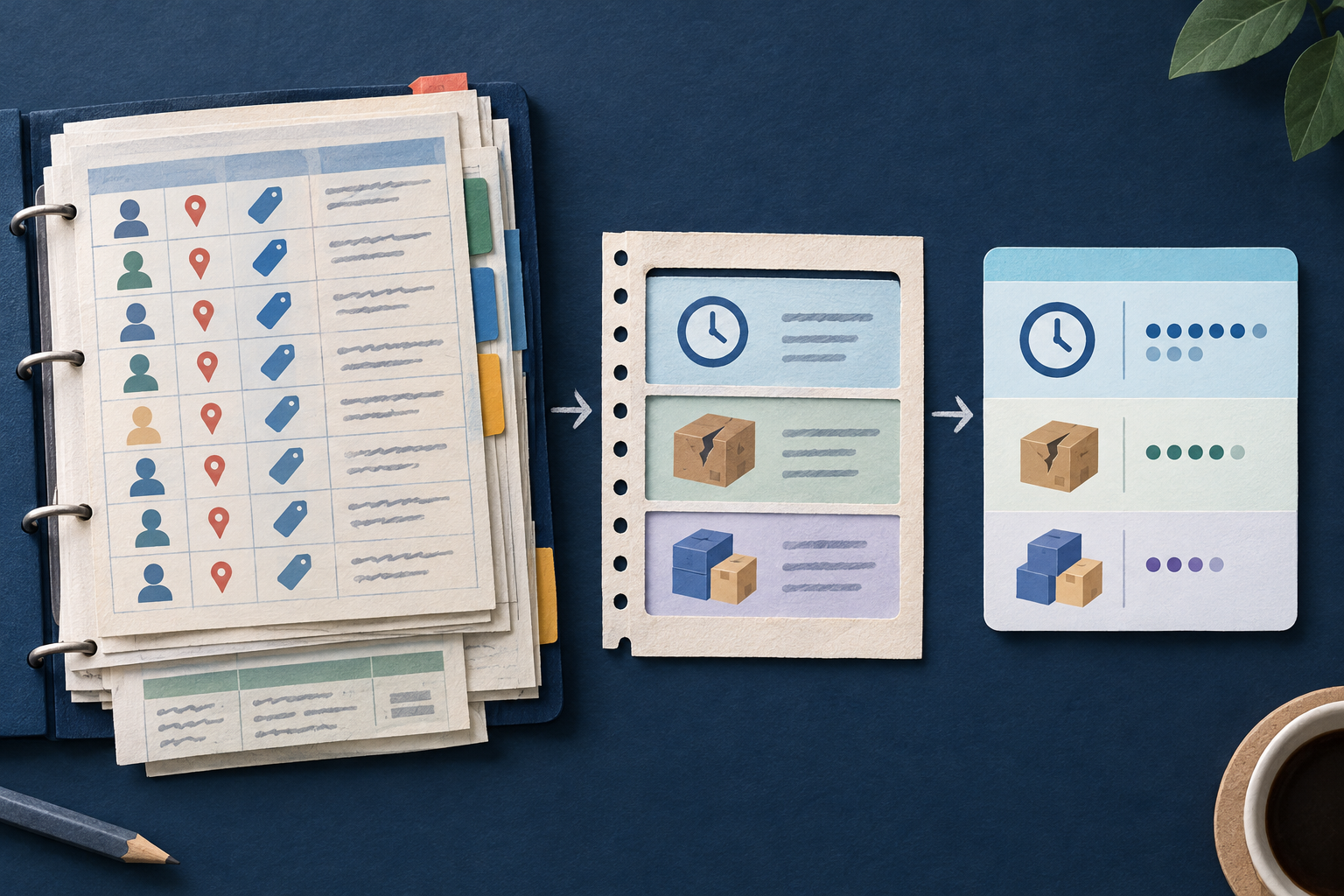
The manager checks that no identifying notes remain. As information owner, they approve this low-sensitivity internal extract for analysis and template drafting in the named managed workspace. No customer connector or message-sending feature is enabled. This decision approves the extract and task, not future uploads of the original workbook.
Staff review the draft, then add customer names, verified dates and approved remedies inside the existing business system. The tool does not receive those details or send messages. Suggested causes remain investigation questions, not established findings. Resolving an individual complaint with identifiable records would require a separate approval.
6. Publish a short policy and approval register
- Exact tool and plan, managed workspace and permitted users.
- Permitted data classes, tasks and explicit exclusions.
- Enabled features, connector scope and action permissions.
- Training settings, retention controls and evidence links.
- Accountable approver, approval date and next review date.
For exceptions, ask staff to state the purpose, required data, proposed tool and why a safer extract will not work. Record the owner’s decision and expiry date. Enforced account and permission controls are stronger than reminders. For wider planning, Is your business ready for an AI assistant? complements these upload rules.
7. Report accidental uploads immediately
- Stop further uploads, sharing and connected actions.
- Notify the designated information or security owner immediately.
- Record the account, time, features and data categories without reproducing sensitive content.
- Follow incident procedures; rotate exposed credentials and request containment or deletion as appropriate.
- Let the responsible owner assess contractual, legal and notification duties. Do not promise complete erasure.
8. Common upload decisions
Does a no-training promise make confidential uploads acceptable?
No. Check retention, access, deletion, contract terms and the task’s necessity separately. A provider commitment does not replace your information owner’s approval.
Can staff upload a spreadsheet after removing customer names?
Only after checking the remaining content and approved scope. Contacts, order details, unusual events, hidden sheets and comments can still identify customers or disclose commercial information.
Does every prompt need approval?
Not under this framework. Approve repeatable workflows with clear boundaries. Staff can work within those limits; a new data class, connector, action or account triggers another decision.
Start with one common task: classify its input, create the smallest useful extract and record the configured tool and owner. Practical AI solutions for business workflows offers related planning context. Before allowing an upload, ask: which information, for which task, in which account, with whose approval? Review contractual permissions and applicable law separately.
Sources & further reading
Use the original guidance when checking details or planning implementation.
This research-assisted guide uses the primary sources linked above. Examples are illustrative unless explicitly identified otherwise. Check original documentation when implementing changes.